
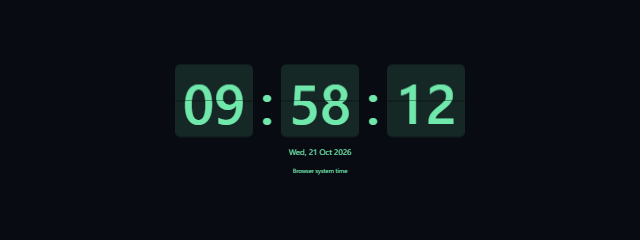


Before starting, decide whether visitors need to see the date or seconds and choose a timezone that makes sense for the room or broadcast. The displayed time follows your device clock, so check that clock if the screen will be used as a shared reference.
How to use Digital Clock Screensaver
- Choose a Theme: dark, light or amber. Adjust Color as needed, keeping the display readable against its background.
- Set Format to 12 or 24. Turn Show date and Show seconds on or off to choose which details appear.
- Choose a Timezone: local, UTC, Europe/Kyiv, Europe/London, America/New_York, Asia/Tokyo or Australia/Sydney.
- Select Start to begin the clock scene. Use Fullscreen if you want it to fill the browser display.
- Press Space to pause or resume, R to reset, and Escape to exit. Select Exit or Exit fullscreen when those controls are available. Tap the fullscreen scene or press Tab to reveal dismissible exit controls; Hide controls hides them again.
When to use it
- Waiting rooms: Keep a simple time display visible for people waiting for an appointment or service.
- Streams and presentations: Add a clock to a spare display so viewers can check the time without opening another app.
- Reception desks: Show the time in a shared space where a basic browser display is useful.
- Breaks from work: Leave a clock on a second monitor to glance at while focusing on another task.
- Time-zone reference: Select a listed timezone when you want the display to show a different region's time.
- Checking a display: Use the contrasting themes to see whether the clock remains easy to read on your screen and at your viewing distance.
Tips for a clear ambient clock
For a shared display, test the chosen Theme and Color from the distance people will view it. Selected colors must retain readable contrast; if the digits blend into the background, choose a different appearance. Dark, light and amber themes offer simple alternatives without changing the time settings.
Use 24-hour format when you want to avoid AM/PM ambiguity, or 12-hour format if that is more familiar to your audience. Show date and Show seconds let you choose how much information is on screen. A minimal clock can be easier to scan in a waiting area, while seconds may be useful when timing a short activity. The screen is a silent visual display, so it will not provide an audio alert.
Digital Clock Screensaver works as an ambient browser clock, not as a replacement for your device's clock settings. Its display uses the device clock and does not query a backend time API. For a calmer setup, consider how long you want the screen to remain visible and choose a comfortable brightness on your monitor.
Limits to know
The displayed time depends on the accuracy of your device clock. This page does not change your computer's sleep or power settings, so the monitor may still turn off according to those settings. Browser bars may also remain visible in fullscreen, depending on the browser and device.
Hidden or offscreen scenes pause, and you need to resume them manually when you return. Reduced motion starts the scene paused. The display is best for a casual time reference; use a dedicated clock or verify the device time if accurate timekeeping is important.