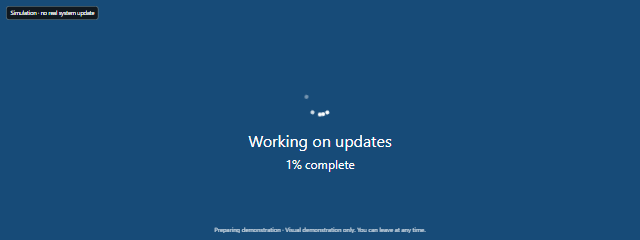
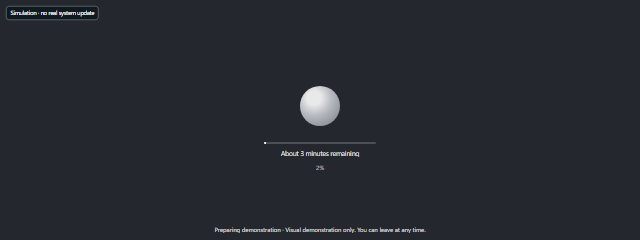
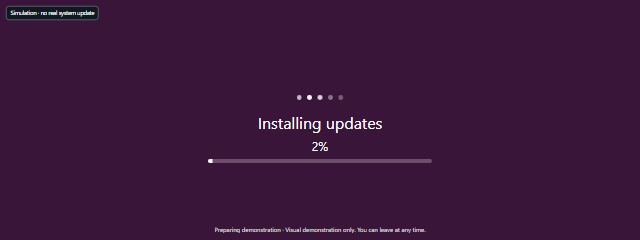

The scene shows “Installing system update” with a percentage and a demonstration notice, giving you a ready-made screen to frame or present. Creators, educators, and event organizers can prepare the timing and starting point before showing it to an audience.
How to use Fake Android Update
- Open Scene settings and adjust Color, Duration (seconds), Background, and Start at (%) to suit the scene you are preparing.
- For timing, choose Duration preset or Custom duration. The listed preset choices are 30 seconds, 60 seconds, 180 seconds, and 300 seconds.
- Select Start to begin. The scene displays “Installing system update” and a progress percentage alongside “Preparing demonstration · Visual demonstration only. You can leave at any time.”
- Use Space to pause or resume, R to reset, F for fullscreen, and Escape to exit. You can also use the Start, Reset, Exit, and Fullscreen buttons. Exit fullscreen leaves the expanded view; Hide controls conceals the controls.
- To bring back dismissible exit controls, tap the fullscreen scene or press Tab. If the scene is hidden or offscreen, it pauses and needs to be resumed manually; reduced motion starts it paused.
When to use it
- Film a staged phone-update moment: Use the screen as a visual prop in a short video without relying on a real device update.
- Prepare a presentation: Show an Android-style progress screen while explaining an imagined update flow or a user-facing status message.
- Make a screenshot or storyboard: Set the scene before capturing a mockup or planning a shot.
- Build a theater or event prop: Display a phone-like update scene in the background as part of a scripted moment.
- Demonstrate progress indicators: Use the percentage display as a familiar example when discussing how progress feedback appears on a screen.
- Practice a timed scene: Choose a duration that fits a brief demonstration, rehearsal, or video segment.
Tips for a smoother demonstration
- Set the starting point first: Choose Start at (%) before pressing Start so the scene opens at the progress point your shot or presentation needs.
- Match the duration to your use: Pick one of the preset lengths for a quick setup, or choose Custom duration when the preset choices do not suit your planned timing.
- Frame the display before presenting: Use Fullscreen when you want the scene to fill the screen, and keep the exit controls accessible so you can leave promptly.
- Check the wording in context: The notice identifying the demonstration is part of the displayed scene. Keep that context clear when showing it to other people.
- Use comfortable screen brightness: Adjust your device’s brightness for the room and audience, especially during a longer presentation.
Limits of Fake Android Update
This is a visual simulation, not an Android phone update. It cannot access device software, install anything, or request privileged access; the page also labels the scene as a visual demonstration. Treat it as a prop for clearly staged use, not as proof that a real update is running.
The progress display is for presentation and staging, not for checking a phone’s update status or diagnosing a device. If you need to install an actual update, use the phone’s own system settings and follow the device maker’s instructions. Browser fullscreen may not hide browser bars, so check the framing on the device you plan to use before recording or presenting.