
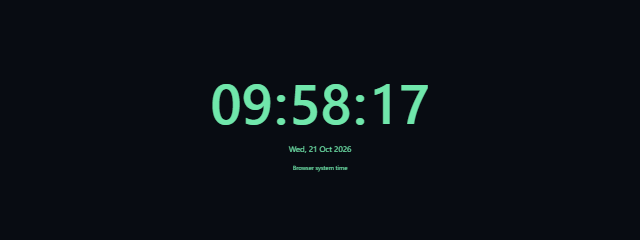


Set the display up before leaving it on: decide whether to show the date or seconds, then choose a theme and time convention that suit the space. The large digits are easy to glance at, whether the screen is nearby or serving as a shared display.
How to use Flip Clock Screensaver
- Choose the display details under Scene settings. Turn Show date and Show seconds on or off as needed.
- Choose a Color Theme: dark, light, or amber. Under Format, select 12 or 24. Under Timezone, choose local, UTC, Europe/Kyiv, Europe/London, America/New_York, Asia/Tokyo, or Australia/Sydney.
- Select Start to begin the scene. Use Fullscreen when you want the clock to fill the available screen area.
- To pause or resume, press Space. Press F to enter fullscreen, R to reset, or Escape to exit. You can also use Reset or Exit. In fullscreen, tap the scene or press Tab to reveal the dismissible exit controls; Hide controls hides them again.
When to use it
- Idle desk display: Keep a visible clock on a spare monitor while you work nearby.
- Livestream waiting screen: Add a clock to a scene viewers see while a stream is waiting to begin.
- Waiting room: Give visitors a clear time display without adding a separate clock device.
- Shared workspace: Show the time on a screen that people in the room can check at a glance.
- Remote event or meeting setup: Put a clock on a secondary screen to help participants follow the local schedule.
- Personal ambient display: Try the dark, light, or amber theme when you want a different look for an otherwise idle screen.
- Checking another time zone: Select a listed zone to display its time instead of the local time.
Tips for a useful clock display
For a Flip Clock Screensaver setup that is easy to read, consider the viewing distance before choosing whether to include seconds. Seconds add detail, while hiding them leaves the hour and minute as the main focus. Show date is useful when the display will be visible for longer periods.
| Setting | What it changes |
|---|---|
| Theme | Switches between dark, light, and amber appearances. |
| Format | Displays time in 12-hour or 24-hour format. |
| Timezone | Sets the displayed time zone using one of the listed choices. |
| Show date / Show seconds | Adds or removes the date and seconds from the clock display. |
The clock uses your browser system time, not an authoritative external time service. If the browser tab becomes hidden or the scene moves offscreen, it pauses; resume it manually when you return. With reduced motion enabled, the scene starts paused and flip effects are disabled.
Limits to know
This is a visual browser clock, so it is best for ambient viewing rather than confirming an official or independently verified time. Its displayed time depends on the clock and timezone choices available in your browser environment. It also does not change your computer’s power settings, so the screen may still turn off according to those settings.
Fullscreen can make the clock more prominent, but browser bars may remain visible. If the clock is used for a public display, check the screen after starting it to confirm the scene and exit controls are positioned as expected. For a time-sensitive task where accuracy must be independently verified, use an authoritative time source instead.