Tool collection

Screen Simulators

Screen Simulators provide fictional on-screen scenes for videos, presentations, screenshots, and demonstrations. They’re useful for creators, presenters, and anyone who needs a visual prop without putting a real update, meeting, or connection problem on screen.

These browser-based displays are simulations, not system tools: choose a scene that suits your example, then use it as a harmless visual backdrop or prop.

Tools in this collection

Screen Simulators

Fake Windows Update

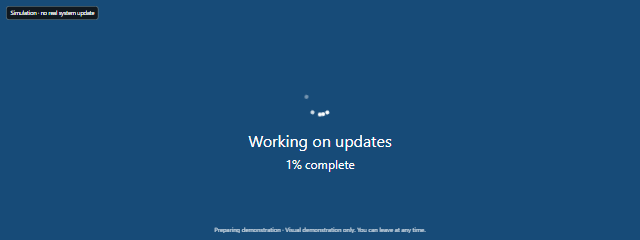
Fake Windows Update displays a clearly labeled, Windows-inspired progress scene with timed progress. Use it as a harmless on-screen prop for a video, presentation, screenshot, or demonstration—not to update a computer.

Open browser tool

Screen Simulators

Fake macOS Update

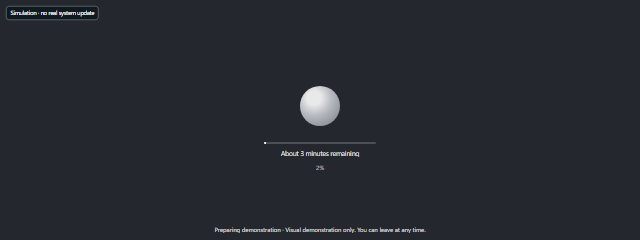
Fake macOS Update displays a clearly labeled, macOS-inspired progress scene in your browser. Use it as a harmless visual prop for a video, presentation, screenshot, or playful demonstration—not to update a device.

Open browser tool

Screen Simulators

Fake Ubuntu Update

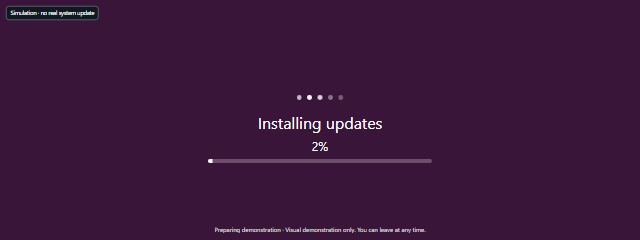
Fake Ubuntu Update displays an Ubuntu-inspired visual update scene for a staged demonstration. Use it as a prop for a video, presentation, screenshot, or just for fun.

Open browser tool

Screen Simulators

Fake Android Update

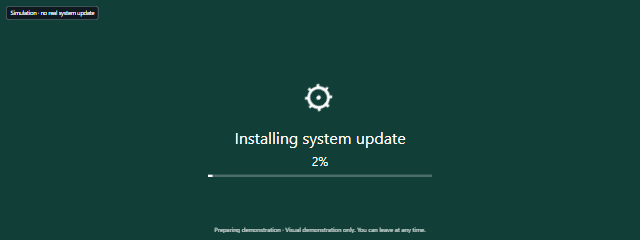
Fake Android Update displays an Android-style update progress scene in your browser for staged videos, presentations, screenshots, or a harmless visual prop. Adjust its scene settings and duration to fit your demonstration.

Open browser tool

Screen Simulators

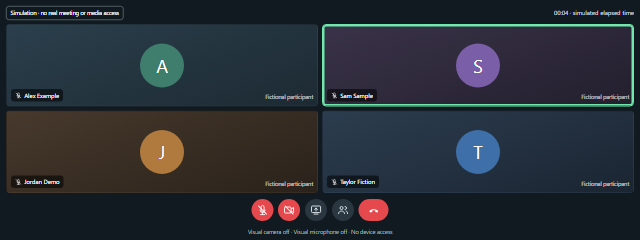
Fake Video Call / Meeting Screen

Fake Video Call displays a fictional meeting scene for videos, presentations, and screenshots. Use it to create a meeting-style visual without opening a real call.

Open browser tool

Screen Simulators

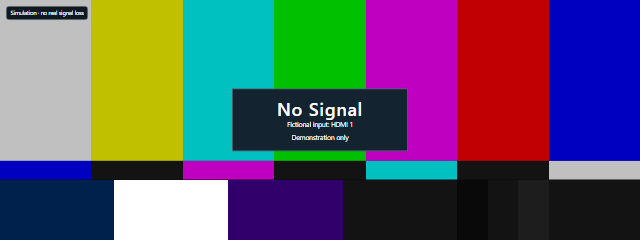
No Signal Screen

Create a fictional no-signal display for videos, presentations, props, or screenshots. No Signal Screen is clearly labeled as a simulation and does not affect your connection.

Open browser tool

Screen Simulators

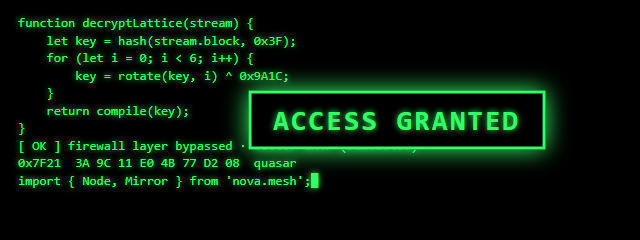
Hacker Simulator

Hacker Simulator fills a retro terminal with fictional code as you type, creating a hacker-style screen for videos, presentations, screenshots, or fun. Use it as a visual prop, not to access or change a computer.

Open browser tool

Screen Simulators for everyday situations

  • Show a Windows-style update: Fake Windows Update displays a clearly labeled Windows-inspired progress scene with timed progress, for a video, presentation, screenshot, or demonstration.
  • Stage a Mac update scene: Fake macOS Update shows a clearly labeled macOS-inspired progress scene in your browser.
  • Make an Ubuntu-inspired prop: Fake Ubuntu Update creates an update-style visual for a staged demonstration, video, presentation, screenshot, or fun.
  • Set up an Android-style progress display: Fake Android Update lets you adjust scene settings and duration for your demonstration.
  • Illustrate a remote meeting: Fake Video Call / Meeting Screen creates a fictional meeting scene without showing a real call.
  • Show a connection problem in a scene: No Signal Screen provides a clearly labeled fictional display for a prop or screenshot; it does not affect your connection.
  • Add a retro hacker look: Hacker Simulator fills a retro terminal with fictional code as you type, for a video, presentation, screenshot, or fun.

How to choose

Start with the visual your project needs: select an update scene that matches the operating-system style you want to represent, or choose the meeting and no-signal screens for those specific scenarios. The update simulators are props rather than actual system updates, so don’t use them to update a computer or device.

For a staged update that needs timed progress, the Windows-inspired scene includes it. If you need to tailor an Android-style scene, choose that simulator for its settings and duration controls. For a more theatrical look, pick the fictional meeting scene or the retro terminal; use No Signal Screen when the scene calls for a simulated display issue, not to troubleshoot a real connection.

Related collections

Color Screens

Color Screens give you a quick way to fill a display with a solid shade for simple lighting, photo and video backdrops, cleaning, or visual checks. They’re useful for anyone who wants a ready-to-show color without opening an image editor, from people setting up a video call to those checking a monitor.Choose a preset color for a quick result, or use a custom shade when you have a particular color in mind. Open a screen fullscreen when you need a broad field of color, or use the display as a simple reference while you work.

Monitor Tests

Monitor Tests help you visually inspect a screen and compare its appearance across display settings. They’re useful when checking a new or secondhand monitor, reviewing a screen you already own, or looking into a visible display concern.Choose a pattern that matches what you want to examine, then use the results as a first-pass visual check rather than a calibrated measurement.

Screensavers

Screensavers give an idle browser display motion, a clear time display, or a distinct visual theme. This collection is useful for people setting up a spare monitor, stream intermission, shared room, or waiting area; the screensavers run locally and pause when the tab is hidden.

Background Generators

Background Generators help you create and download images for wallpapers, presentations, and other design projects. Choose a simple color, a textured or patterned look, or a custom wallpaper layout, then set the image dimensions to fit your needs.

Timers & Lighting

Timers & Lighting tools help you manage time, structure focused work, and use your display as a light source. They’re useful for students, home workers, instructors, and anyone who wants a simple browser-based timer or a little extra light.