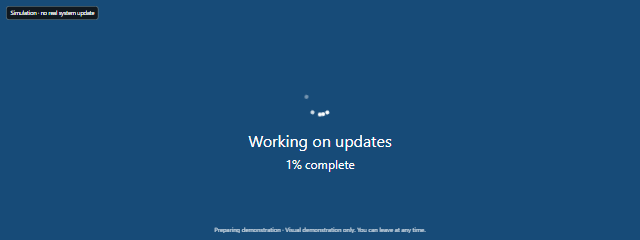
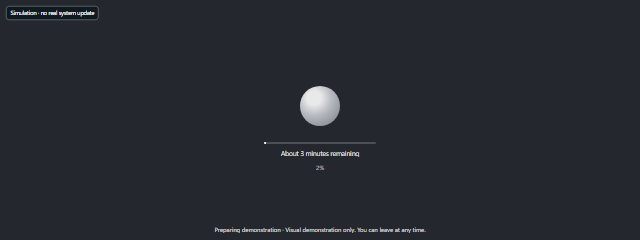
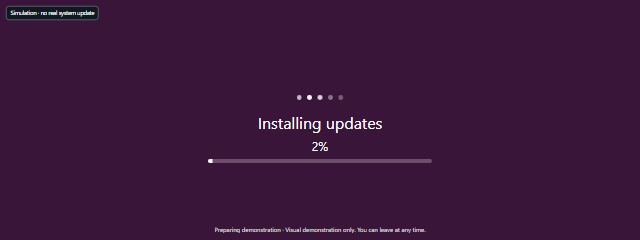
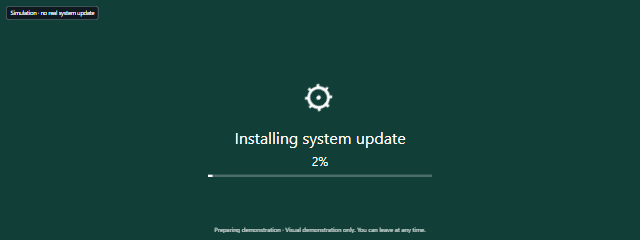

This scene can help video makers, presenters, and anyone preparing a visual prop create a recognizable display without changing the connected screen or device. Decide which fictional input label and message suit your scene before you start; the result is a clearly marked demonstration, not a real display error.
How to use No Signal Screen
- Choose the look in Scene settings. Set Input to HDMI 1, HDMI 2, DisplayPort, or AV, and choose Message: No Signal or No input (simulation).
- Adjust Color, Speed, Animate status box, Scanlines, and Background to suit the scene. Under Screen style, choose color bars or black. The fictional input and demonstration labels make clear that the display is simulated.
- Select Start when you are ready to run the visual demonstration. Press Space to pause or resume. If reduced motion is enabled, the scene starts paused.
- Select Fullscreen or press F to fill the available screen area. To bring back the dismissible controls, tap the fullscreen scene or press Tab. Select Hide controls if you want to dismiss them.
- Select Reset or press R to reset the scene. Select Exit or press Escape to leave it; if fullscreen is active, Escape exits fullscreen.
When to use it
- Film or video scenes: Show a fictional input error as a prop without disconnecting equipment.
- Presentations: Display a clear, temporary no-signal visual while explaining an input or screen issue.
- Screenshot mockups: Create a scene image with a chosen input label and message for a design draft or tutorial.
- Rehearsals: Practice explaining what an on-screen signal warning could look like before troubleshooting a real display.
- Classroom demonstrations: Illustrate the idea of a source-selection message without interfering with classroom devices.
- Playful, harmless props: Add a familiar monitor-style scene to a skit or themed setup, while keeping the simulation label visible.
For a quick demonstration, select the No Signal Screen’s built-in options, start the scene, and use Fullscreen only if the larger presentation is useful. It is not a way to test whether a cable, input, or monitor is working.
Tips for a clear demonstration
Match the Input and Message to the story you are presenting, and choose either color bars or a black Screen style based on the look you want. If motion is distracting, turn off Animate status box or pause with Space; use the Speed control to adjust the scene’s movement. You can also dismiss the controls with Hide controls, then tap the scene or press Tab to bring the exit controls back when needed.
Keep the screen’s Simulation and demonstration wording in view when other people may mistake the scene for a real problem. If the scene pauses because it is hidden or offscreen, resume it manually when you return. Browser bars may remain visible in fullscreen.
Limits of the simulation
No Signal Screen is a visual effect only. It does not inspect hardware inputs, interrupt the display signal, or represent an actual loss of signal, so it cannot diagnose a bad cable, source, or monitor. Use the device’s own input menu and manufacturer troubleshooting guidance when you need to find the cause of a real display problem.
Use Start only when you want to run the demonstration. The built-in input labels and messages are fictional, and the scene does not perform system or media actions. For practical troubleshooting, check the physical connections and selected input rather than relying on this screen.