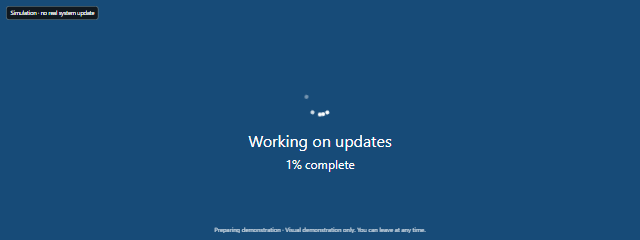
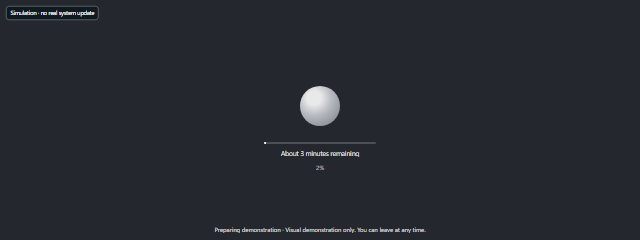
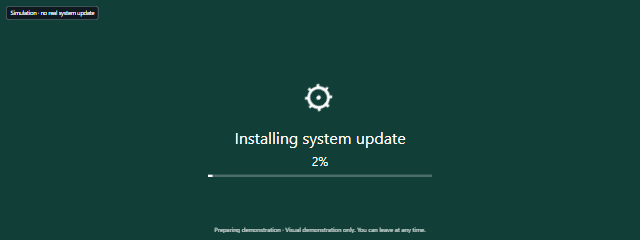

The scene is useful when you need a convincing update-style screen on a display without interrupting your regular work. Before starting, decide how long it should run and whether you want to show it fullscreen; the available settings let you tailor the scene’s appearance and starting progress.
How to use Fake Ubuntu Update
- In Scene settings, choose the available Color and Background options, then set Start at (%) if you want the progress scene to begin at a particular point.
- Set Duration (seconds). Under Duration preset, select Custom duration or one of the listed presets: 30 seconds, 60 seconds, 180 seconds, or 300 seconds.
- Select Start to begin the visual demonstration. The scene shows an “Installing updates” message and progress, then reaches completion based on the chosen duration.
- Select Fullscreen for a larger presentation or recording setup. Press F to toggle fullscreen, Space to pause or resume, R to reset, or Escape to exit. You can also use the Exit fullscreen and Exit controls.
- Select Hide controls to clear the controls from view. Tap the fullscreen scene or press Tab to show the dismissible exit controls again.
When to use it
- Record a tech-themed video: Put an update-style scene on a spare screen or in a shot as a visual prop.
- Prepare a presentation: Show a staged progress screen while explaining an example or setting up a demonstration.
- Capture a screenshot: Choose a starting progress and scene duration that suit the moment you want to capture.
- Make a tutorial mock-up: Use the Ubuntu-inspired screen as a visual aid without changing the computer you are demonstrating on.
- Set up a display for an event: Run the scene on a monitor as a temporary background visual.
- Try a playful desktop prop: Show it briefly for a lighthearted moment, while making clear to others that it is not a real system update.
Tips for a smoother demonstration
Match the duration to the time you need on camera or during a talk. If you want the progress to appear underway from the beginning, set Start at (%) before selecting Start; use R to reset the scene when you want to begin again. If the controls are in the way, Hide controls removes them from view, and tapping the fullscreen scene or pressing Tab brings the exit controls back.
Use Space to pause or resume when you need to hold a particular moment. Hidden or offscreen scenes pause, so resume manually when you return to them. Reduced motion starts paused; press Space when you are ready to continue. Choose comfortable screen brightness for the room and the people watching.
The page labels the scene “Simulation · no real system update.” It does not run commands, install packages, or modify the operating system, so treat it as a visual prop rather than proof that a computer is updating.
Limits of Fake Ubuntu Update
This tool displays an Ubuntu-inspired update scene, not a working Ubuntu installer or operating-system update. Its progress and completion are part of the visual demonstration; they do not indicate that packages are being downloaded or installed. It cannot diagnose update problems, repair a computer, or verify whether an actual update has finished.
For real update status or troubleshooting, use the operating system’s own update tools or consult the device manufacturer’s support. For a staged scene, use the built-in controls and settings, and be transparent with anyone who might mistake the display for a real update.