







Monitor Tests for common screen checks
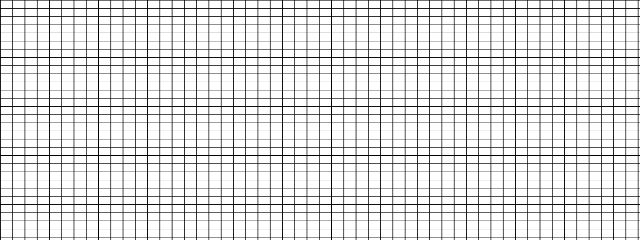
- Checking a new or used display: Start with Monitor Test for a broad look at patterns and visible irregularities, or use Monitor Test Patterns for grids, lines, text, gradients, and level patches.
- Looking for pixel issues: Use Dead Pixel Test to spot dark, bright, or unusual subpixels, and Stuck Pixel Test to look for subpixels that stay an unexpected color.
- Checking uneven brightness or tint: Try Screen Uniformity Test with white, black, and gray patterns. For edge glow on a monitor, use Backlight Bleed Test.
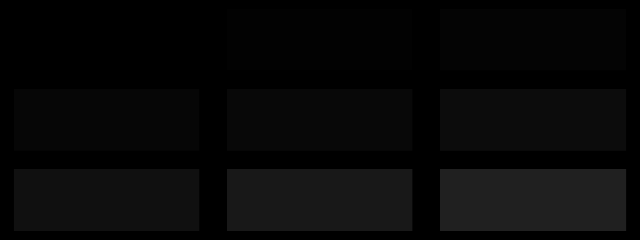
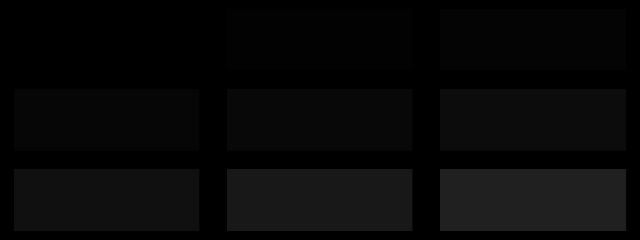
- Inspecting an OLED screen: Use OLED Gray Test to look for banding, tint, or uneven dark-gray tones, or OLED Screen Test to compare black, low-gray, white, and checkerboard fields.
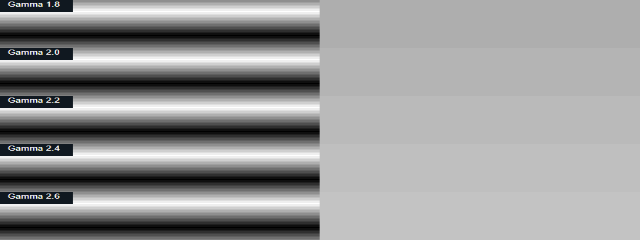
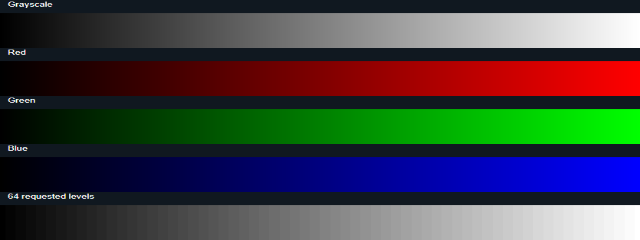
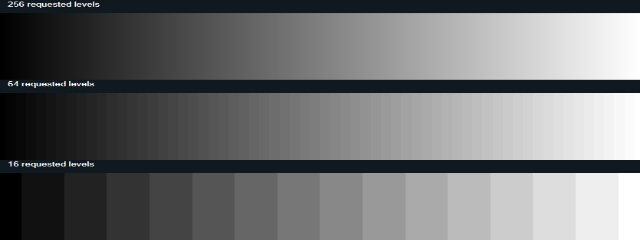
- Checking smooth color transitions: Gradient Test and Color Banding Test show ramps that can reveal visible steps or uneven transitions.
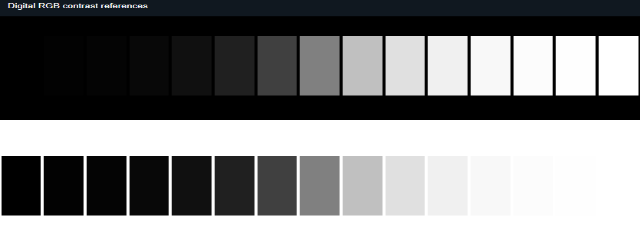
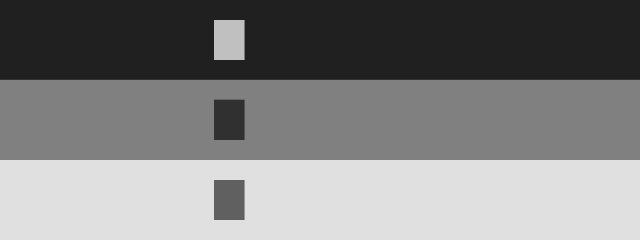
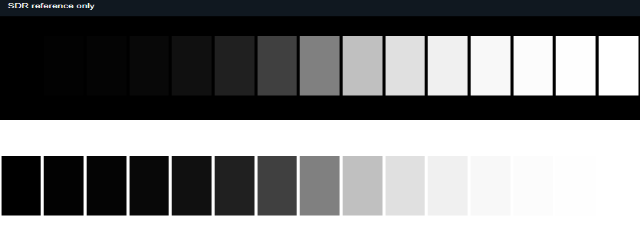
- Reviewing shadow and highlight detail: Use Black Level Test for near-black patches and White Level Test for near-white detail.
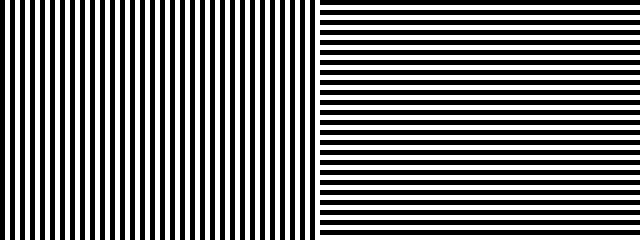
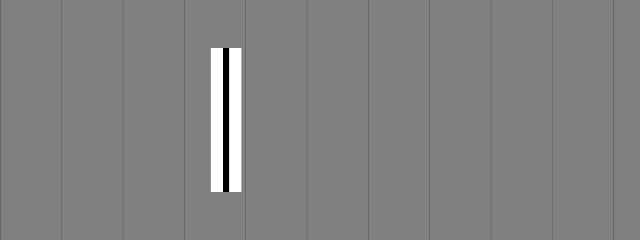
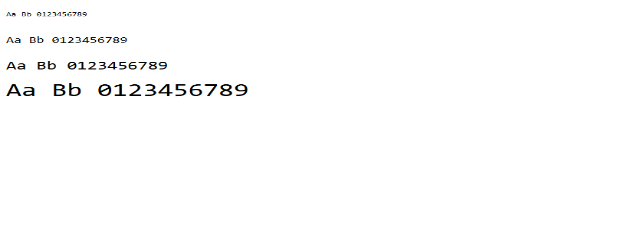
- Comparing clarity: Sharpness Test shows fine lines, grids, and text; Text Clarity Test lets you compare text sizes and line patterns.
- Checking motion by eye: Use Ghosting Test to look for trails, or Response Time Test to compare moving gray targets at different speeds.
How to choose
Start with a general test if you’re not sure what to look for, then switch to a focused pattern when you notice a specific issue. For pixels, choose the dead-pixel or stuck-pixel check based on whether you’re looking for dark or bright irregularities versus a subpixel that holds an unexpected color.
For tonal detail, use the black- or white-level pattern rather than relying only on a general brightness check. For motion, the Ghosting Test focuses on visible trails, while the Response Time Test compares dark-to-light transitions at multiple speeds. These tools show visual results in your browser; they don’t provide calibrated measurements or certify display performance.