
Screen Simulators

Fake Windows Update

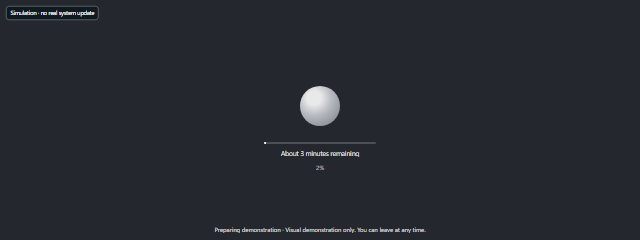
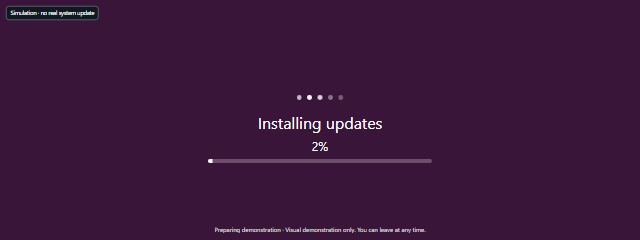
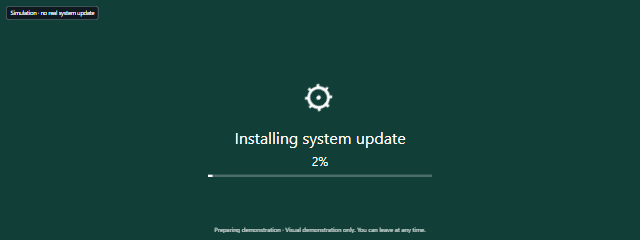
Fake Windows Update displays a clearly labeled, Windows-inspired progress scene with timed progress. Use it as a harmless on-screen prop for a video, presentation, screenshot, or demonstration—not to update a computer.

Fake Windows Update

In your browser

Simulation · no real system update

Working on updates

0% complete

Preparing demonstration · Visual demonstration only. You can leave at any time.

Visual simulation only · no system or media actions

This is a simulation. Simulation only. It never updates the operating system, modifies files, requests administrator permissions or downloads installations. Start only if you want to run the visual demonstration.

Scene settings

Simulation only. It never updates the operating system, modifies files, requests administrator permissions or downloads installations.

F: fullscreen · Space: pause/resume · R: reset · Escape: exit. Tap the fullscreen scene or press Tab to show dismissible exit controls. Hidden or offscreen scenes pause; resume manually. Reduced motion starts paused. If the browser keeps its bars visible, an Exit button stays on screen.

Enable JavaScript to run this scene. No animation or simulation is running yet.

Related tools

Screen Simulators

Fake macOS Update

Fake macOS Update displays a clearly labeled, macOS-inspired progress scene in your browser. Use it as a harmless visual prop for a video, presentation, screenshot, or playful demonstration—not to update a device.

Open browser tool

Screen Simulators

Fake Ubuntu Update

Fake Ubuntu Update displays an Ubuntu-inspired visual update scene for a staged demonstration. Use it as a prop for a video, presentation, screenshot, or just for fun.

Open browser tool

Screen Simulators

Fake Android Update

Fake Android Update displays an Android-style update progress scene in your browser for staged videos, presentations, screenshots, or a harmless visual prop. Adjust its scene settings and duration to fit your demonstration.

Open browser tool

Screen Simulators

Fake Video Call / Meeting Screen

Fake Video Call displays a fictional meeting scene for videos, presentations, and screenshots. Use it to create a meeting-style visual without opening a real call.

Open browser tool

Color Screens

White Screen

White Screen fills your display with a plain white field for checking smudges, adding soft light to video calls, tracing, or creating a clean background.

Open color screen

Monitor Tests

Dead Pixel Test

Dead Pixel Test displays solid-color patterns to help you visually check a monitor, laptop, or phone for dark, bright, or unusual subpixels. Use it for a quick inspection before buying a screen or while its return period is open.

Open browser tool

Before you begin, decide which Color and Background setting suits your shot, what Start at (%) value you need, and how long the progress should run. The scene displays “Working on updates,” a percentage, and “Preparing demonstration” so viewers can recognize the staged screen.

How to use Fake Windows Update

  1. In Scene settings, set Color and Background, choose a Start at (%) value, and select Duration (seconds). The duration choices are 30 seconds, 60 seconds, 180 seconds, 300 seconds, or Custom duration.
  2. Select Start to run the visual demonstration. Its progress follows a deterministic timed sequence based on the duration you selected.
  3. Select Fullscreen or press F to make the scene fill the screen. Press Escape to leave fullscreen, or select Exit fullscreen when that control is shown.
  4. Press Space to pause or resume, R to reset, or select Reset or Exit. To bring back dismissible exit controls in a fullscreen scene, tap the scene or press Tab. Select Hide controls to dismiss the controls.

When to use it

  • Recording a video: Put a staged progress screen in a shot without needing a real update process.
  • Making a presentation: Show a Windows-inspired update scene as a visual example or placeholder.
  • Preparing a screenshot: Set the starting percentage and duration before capturing the scene.
  • Creating a harmless prop: Use Fake Windows Update in a skit or staged scene where a clearly labeled simulation is appropriate.
  • Demonstrating progress displays: Show how a timed percentage scene looks without changing a computer.
  • Checking a layout on a display: Use the fullscreen view to see how the update-style scene appears on the screen you are presenting with.
  • Trying a quick visual gag: Run the scene briefly, then select Exit when you are finished.

Tips for a convincing, clear demonstration

Choose the starting percentage to suit the moment you want to show, then pick a duration that gives you enough time to record or present it. A longer duration lets the timed progress play for longer; Reset lets you return to the beginning and set up another take.

If controls are hidden, tap the fullscreen scene or press Tab to reveal dismissible exit controls. Hidden or offscreen scenes pause, so resume manually when ready. Reduced motion starts the scene paused; press Space to resume if you want the animation to run. Browser bars may remain visible in fullscreen.

Limits of Fake Windows Update

Fake Windows Update is a labeled visual simulation, not a Windows update utility. It never updates the operating system, modifies files, requests administrator permissions, or downloads installations; the displayed progress is for demonstration only. Do not present it as proof that a real computer is updating or use it to pressure someone.

The scene is designed for props, presentations, videos, and screenshots, not for diagnosing update problems or showing the actual status of a device. If Windows is genuinely stuck during an update, use the computer’s own update screen and follow the manufacturer’s support guidance. For a staged scene, use Start and the duration controls to manage the demonstration, then Exit when you are done.

Frequently asked questions

What does Fake Windows Update show?

It displays a Windows-inspired scene with “Working on updates,” a progress percentage, and a “Preparing demonstration” label. The screen identifies itself as a visual simulation.

How do I start the update scene?

Set the scene options you want, then select Start. Select Fullscreen or press F if you want the scene to fill the screen.

Can I choose how long the progress takes?

Yes. Choose 30 seconds, 60 seconds, 180 seconds, or 300 seconds, or select Custom duration under Duration (seconds).

How do I pause or reset it?

Press Space to pause or resume, or R to reset. You can also select Reset.

Why did the scene pause when I switched away?

Hidden or offscreen scenes pause. Return to the scene and resume manually with Space.

Does it really update Windows or install anything?

No. It is only a visual simulation and does not update the operating system, modify files, request administrator permissions, or download installations.