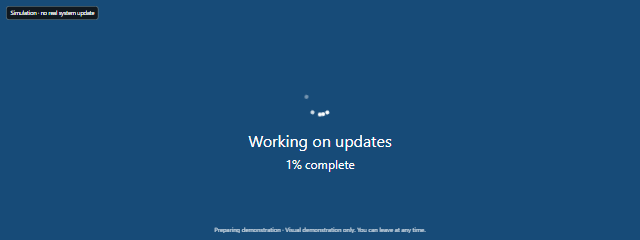
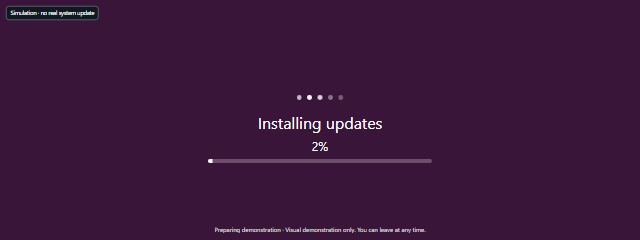
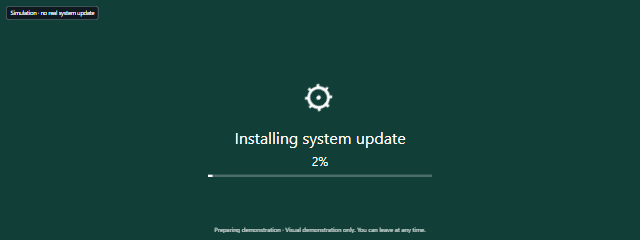

The scene begins with “Calculating time remaining…” and a progress display, giving you a ready-made visual for a staged moment. Before starting, decide whether you want a brief clip or a longer background scene, and set the starting progress and duration to suit it.
How to use Fake macOS Update
- In Scene settings, choose values for Color and Background, then set Start at (%) and Duration (seconds).
- For duration, choose Duration preset or Custom duration. Preset options are 30 seconds, 60 seconds, 180 seconds and 300 seconds.
- Select Start to run the visual demonstration. The scene includes a progress display and time-remaining message.
- Select Fullscreen if you want the scene to fill the display. Use Exit fullscreen to return to the page, or Exit to leave the scene.
- Use Reset to restart. Press F for fullscreen, Space to pause or resume, R to reset, or Escape to exit. Tap the fullscreen scene or press Tab to show the dismissible exit controls; select Hide controls to dismiss them.
When to use it
- Making a video prop: Put the update-style screen into a shot without needing a real system update.
- Preparing a presentation: Use the scene as a visual stand-in while discussing setup, waiting or software updates.
- Capturing a screenshot: Set the progress and duration first to frame the kind of moment you want to show.
- Creating a staged demo: Start the scene when you need a clear, moving visual rather than a static slide.
- Adding a playful pause: Use the update screen as a lighthearted prop, while keeping its simulation label visible to viewers.
- Checking a layout on a display: Open the scene on the screen you plan to use and see how the chosen color and background look in the room.
Tips for a smoother demonstration
Choose the duration to match your use: 30 seconds can suit a quick shot, while 180 or 300 seconds can provide a longer scene. Custom duration is available when a preset does not fit. Set Start at (%) to choose where the progress display begins, so you can prepare the scene before presenting it.
Try the selected Color and Background before entering fullscreen, especially if you are recording or presenting on a particular display. For a clean composition, use Hide controls after you have chosen your settings. Keep the scene’s Simulation label in view so the prop is not mistaken for a genuine system screen.
Hidden or offscreen scenes pause and need to be resumed manually. Reduced motion starts paused, so press Space or use the scene controls when you are ready to continue. If you need to leave quickly, the fullscreen scene has dismissible exit controls; Escape also exits.
Limits of Fake macOS Update
This is a visual demonstration only, without proprietary logo assets. It does not perform a real update or installation, and it does not involve an account or system permission. Do not use it as evidence that a computer is updating or as a substitute for checking a device’s actual update status.
The scene is intended as a browser prop, not a way to troubleshoot or update macOS. If you need to install an update, check the update controls on the device itself; for update problems, use the device manufacturer’s support guidance.