






















Screen utilities, made simple

White Screen

A clean, bright canvas for lighting, creative work, and a closer look at your display.

White Screen

In your browser
#FFFFFF
Quick colors
Choose a custom color
RGB
HSL
Screen light

Brightness and warmth only change how this screen looks. The HEX value and downloads stay exact.

Download a solid-color image

16–8192 pixels per side, up to 33,177,600 pixels total. 8K needs substantial memory and may fail on some devices. Images stay in your browser.

Enable JavaScript to use color controls, fullscreen and downloads. The default color is shown above.

Popular color screens

A simple palette for a different kind of screen space.

Monitor tests

Visual inspection patterns with clear browser and display limitations.

Monitor Tests

Dead Pixel Test

Dead Pixel Test displays solid-color patterns to help you visually check a monitor, laptop, or phone for dark, bright, or unusual subpixels. Use it for a quick inspection before buying a screen or while its return period is open.

Open browser tool

Monitor Tests

Monitor Test

Monitor Test displays patterns for checking a new or used screen, comparing display settings, and spotting visible irregularities. Use it to note concerns before deciding whether a display needs closer attention.

Open browser tool

Monitor Tests

Screen Uniformity Test

Screen Uniformity Test displays solid white, black and gray patterns so you can visually check a monitor for uneven brightness or tint. Use it when assessing a new or used display or comparing picture settings.

Open browser tool

Monitor Tests

OLED Gray Test

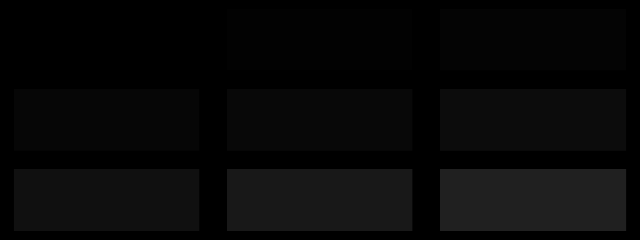
OLED Gray Test displays dark gray patterns to help you inspect an OLED screen for visible banding, tint, or uneven tones. Use it to check a new or used display or compare its settings.

Open browser tool

Monitor Tests

Gradient Test

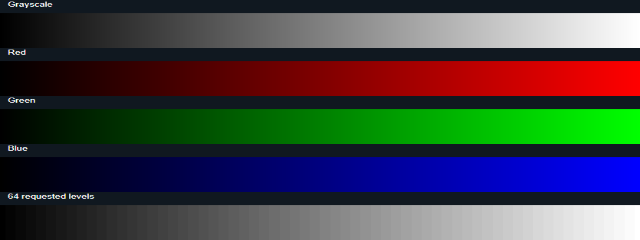
Gradient Test displays grayscale and red, green, and blue ramps so you can check a monitor for visible banding or uneven transitions. Use it to inspect a new or used screen or compare display settings in your browser.

Open browser tool

Monitor Tests

Black Level Test

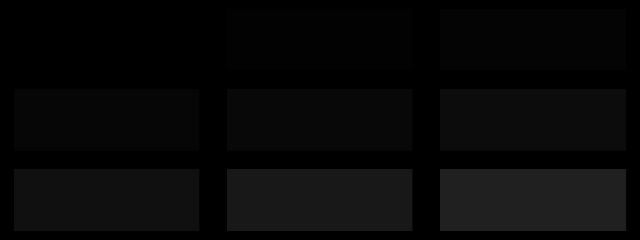
Black Level Test displays labeled near-black patches against a black background so you can check whether a monitor reveals shadow detail. Use it to compare a new or used screen or review changes to its picture settings.

Open browser tool

Monitor Tests

White Level Test

White Level Test displays near-white patches against a white background so you can check whether a monitor preserves visible highlight detail. Use it to inspect a new or used screen or compare display settings, not as a calibrated brightness measurement.

Open browser tool

Monitor Tests

Sharpness Test

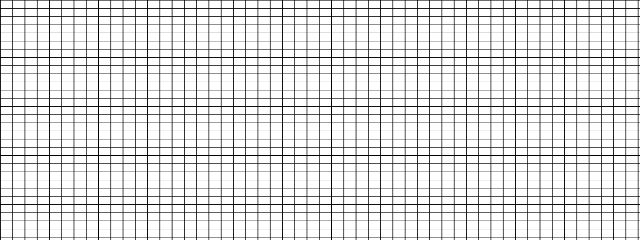
Sharpness Test displays fine-line, grid, checkerboard and text patterns so you can inspect monitor clarity, compare sharpness settings and notice visible rendering issues.

Open browser tool

Monitor Tests

Stuck Pixel Test

Stuck Pixel Test displays solid color fields so you can inspect a screen for subpixels that stay an unexpected color. Use it when checking a new or secondhand display, or after changing display settings.

Open browser tool

Monitor Tests

Backlight Bleed Test

Backlight Bleed Test displays black and dark-gray fields so you can inspect a monitor for glow around its edges. Use it to visually check a new or used screen or compare display settings.

Open browser tool

Monitor Tests

Brightness Test

Brightness Test displays near-black, near-white, and gray steps so you can compare screen visibility while adjusting brightness with your monitor or laptop controls. Use it to check a display that looks too dim or washed out, or to compare settings by eye.

Open browser tool

Monitor Tests

Contrast Test

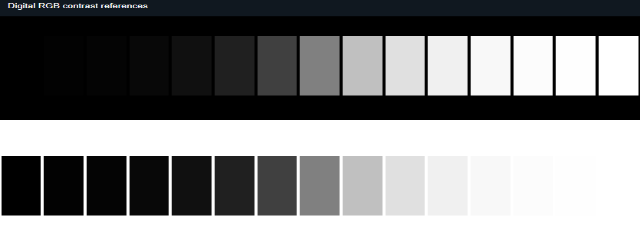
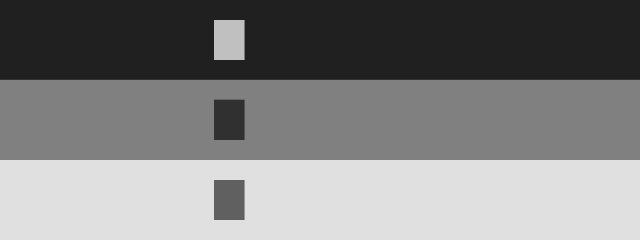
Contrast Test displays dark and bright patches against reference backgrounds so you can check whether a screen keeps shadow and highlight details visible. Use it to compare settings or inspect a new or used monitor.

Open browser tool

Monitor Tests

Gamma Test

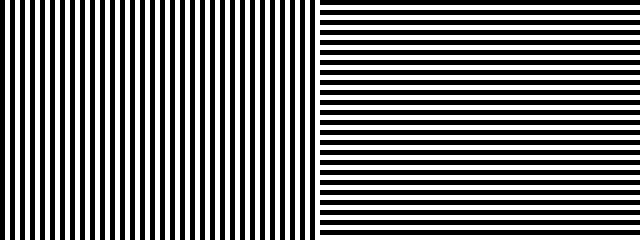
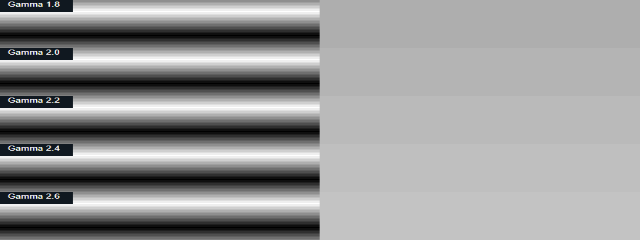
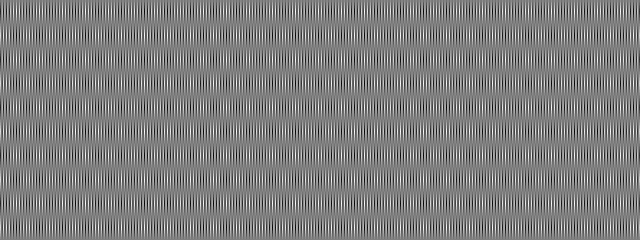
Gamma Test shows alternating black-and-white lines beside solid gray references so you can visually compare a display’s gamma appearance. Use it as a quick check when reviewing monitor settings, not as a calibrated measurement.

Open browser tool

Monitor Tests

Color Banding Test

Color Banding Test displays grayscale and RGB ramps so you can check a monitor for visible steps instead of smooth transitions. Use it to inspect a new or used screen or compare display settings.

Open browser tool

Monitor Tests

Response Time Test

Response Time Test displays moving gray targets at three speeds so you can compare how dark-to-light transitions look on a monitor. Use it to spot visible smearing or differences between display settings, not to get a calibrated response-time number.

Open browser tool

Monitor Tests

Ghosting Test

The Ghosting Test displays a moving high-contrast target so you can inspect visible trails and compare motion at different speeds. Use it to check a new or used monitor or compare display settings by eye.

Open browser tool

Monitor Tests

Text Clarity Test

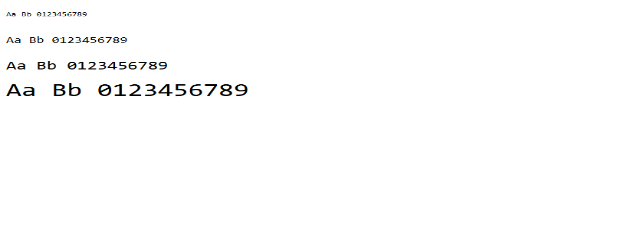
Use Text Clarity Test to compare text at different sizes and view line patterns on your screen. It can help you spot visible clarity differences when checking a display or comparing settings.

Open browser tool

Monitor Tests

Monitor Test Patterns

Monitor Test Patterns displays visual grids, lines, text, gradients, and level patches so you can inspect a screen and compare display settings. Use it as a first-pass check for visible irregularities on a new or used monitor.

Open browser tool

Monitor Tests

Refresh Rate Test

Refresh Rate Test displays moving references so you can compare how a screen behaves at different settings. Use it to check a new or used display and see browser-reported motion timing.

Open browser tool

Monitor Tests

OLED Screen Test

Use OLED Screen Test to compare black, low-gray, white and checkerboard fields on an OLED display. It helps you spot visible tint, retention or unevenness during a quick visual check.

Open browser tool

Monitor Tests

HDR Test

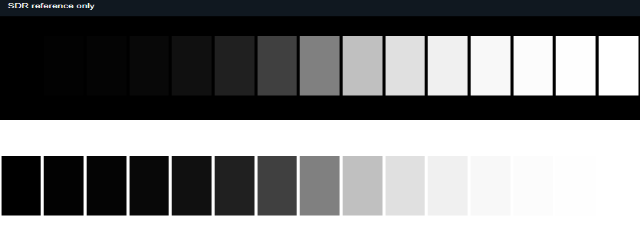
Use HDR Test to view your browser’s dynamic-range and gamut reports alongside labeled SDR patterns. It offers a quick visual way to compare tonal detail on a display, not a certification of HDR performance.

Open browser tool

Monitor Tests

Color Depth Test

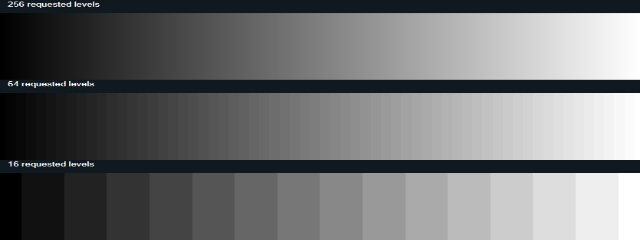
Color Depth Test displays ramps with 256, 64 and 16 requested channel levels so you can compare how color gradations appear on a screen. Use it to look for visible steps or banding and compare display settings, not to get a calibrated bit-depth measurement.

Open browser tool

Screensavers and visual simulators

Local browser scenes and clearly labeled demonstrations.

Screensavers

DVD Logo Screensaver

Use DVD Logo Screensaver to show a bouncing, DVD-inspired badge on an idle screen. Start it for a simple ambient animation in a waiting area, stream, or spare display.

Open browser tool

Screensavers

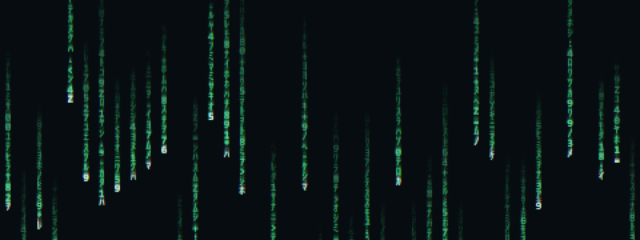
Matrix Rain Screensaver

Matrix Rain Screensaver displays falling characters as an animated backdrop for an idle screen, stream setup, or waiting room. Adjust the scene to suit your display and the atmosphere you want.

Open browser tool

Screensavers

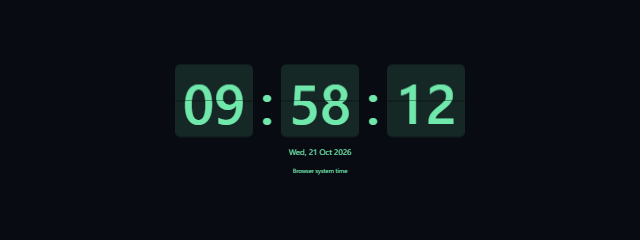
Flip Clock Screensaver

Flip Clock Screensaver turns a browser tab into a large flip-style clock for an idle display, stream, or shared room. Use it to keep the time visible in a distinctive format.

Open browser tool

Screensavers

Digital Clock Screensaver

Digital Clock Screensaver displays a readable browser clock for an idle screen, stream or waiting room. Set its theme, timezone, date and time format to suit the space.

Open browser tool

Screensavers

TV Static Screensaver

TV Static Screensaver displays restrained animated television-style noise for an idle display, stream intermission, or ambient backdrop. Use it to give a waiting screen a retro look without adding audio.

Open browser tool

Screensavers

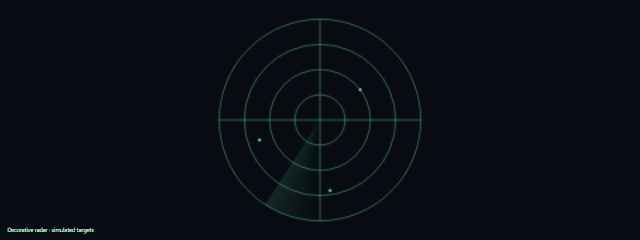
Radar Screen

Radar Screen displays a decorative circular radar grid and sweeping animation with optional simulated targets. Use it as an ambient screen for an idle display, stream, or waiting area—not to detect real objects or locations.

Open browser tool

Screen Simulators

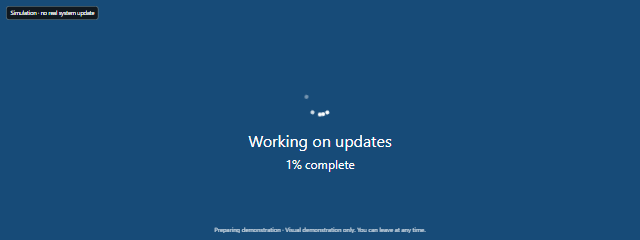
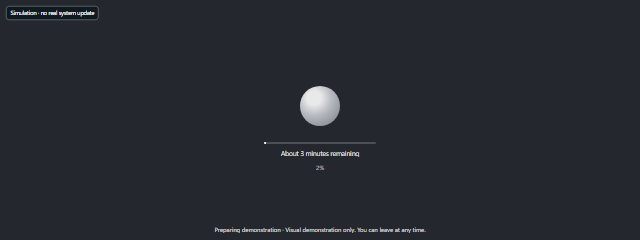
Fake Windows Update

Fake Windows Update displays a clearly labeled, Windows-inspired progress scene with timed progress. Use it as a harmless on-screen prop for a video, presentation, screenshot, or demonstration—not to update a computer.

Open browser tool

Screen Simulators

Fake macOS Update

Fake macOS Update displays a clearly labeled, macOS-inspired progress scene in your browser. Use it as a harmless visual prop for a video, presentation, screenshot, or playful demonstration—not to update a device.

Open browser tool

Screen Simulators

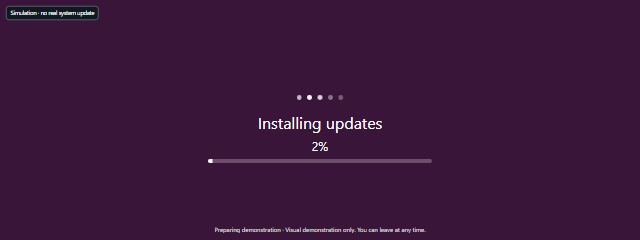
Fake Ubuntu Update

Fake Ubuntu Update displays an Ubuntu-inspired visual update scene for a staged demonstration. Use it as a prop for a video, presentation, screenshot, or just for fun.

Open browser tool

Screen Simulators

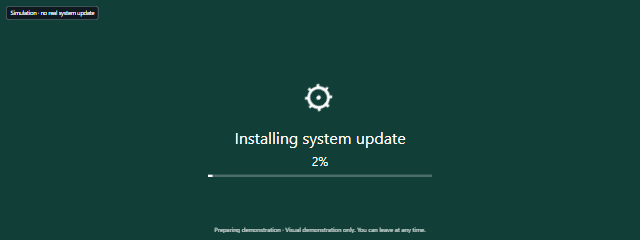
Fake Android Update

Fake Android Update displays an Android-style update progress scene in your browser for staged videos, presentations, screenshots, or a harmless visual prop. Adjust its scene settings and duration to fit your demonstration.

Open browser tool

Screen Simulators

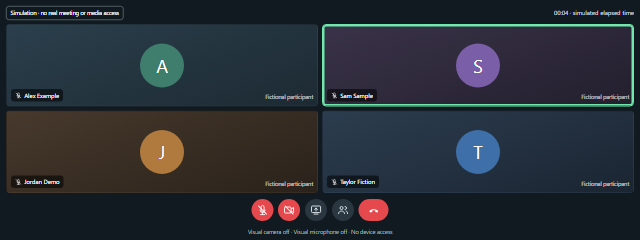
Fake Video Call / Meeting Screen

Fake Video Call displays a fictional meeting scene for videos, presentations, and screenshots. Use it to create a meeting-style visual without opening a real call.

Open browser tool

Screen Simulators

No Signal Screen

Create a fictional no-signal display for videos, presentations, props, or screenshots. No Signal Screen is clearly labeled as a simulation and does not affect your connection.

Open browser tool

Screen Simulators

Hacker Simulator

Hacker Simulator fills a retro terminal with fictional code as you type, creating a hacker-style screen for videos, presentations, screenshots, or fun. Use it as a visual prop, not to access or change a computer.

Open browser tool

Backgrounds and productivity

Create local images, keep time or make space to focus.

Background Generators

Solid Color Background Generator

Solid Color Background Generator creates downloadable plain-color images in a size and format you choose. Use it to make a clean wallpaper, presentation background, or design asset in an exact color.

Open browser tool

Background Generators

Gradient Background Generator

Gradient Background Generator lets you create custom color blends and download them as background images or wallpapers. Adjust the gradient and image size to suit your screen or project.

Open browser tool

Background Generators

Pattern Background Generator

The Pattern Background Generator creates repeating pattern backgrounds for wallpapers, headers, and other designs. Choose a pattern, colors, spacing, and output size, then download the image.

Open browser tool

Background Generators

Wallpaper Maker

Wallpaper Maker lets you create a downloadable wallpaper with a solid or gradient background, optional pattern, text, and decorative circles. Set its dimensions and image format for a desktop, phone, or other screen.

Open browser tool

Background Generators

Noise Background Generator

Noise Background Generator creates downloadable monochrome or colored grain backgrounds with adjustable settings. Use it to make a texture or wallpaper at a size you choose.

Open browser tool

Background Generators

Checkerboard Background Generator

Checkerboard Background Generator creates a two-color checkerboard image you can customize and download as a background or wallpaper. Set its colors, square size, spacing, rotation, and offset to suit a design or screen backdrop.

Open browser tool

Timers & Lighting

Countdown Timer

Use Countdown Timer to count down a chosen period for cooking, workouts, classes, presentations, or a short deadline. Set the time yourself or choose a quick duration, then keep the countdown handy as you work.

Open browser tool

Timers & Lighting

Stopwatch

Stopwatch measures elapsed time in your browser and lets you mark laps. Use it to track a workout, practice run, experiment, or any task where you want split times.

Open browser tool

Timers & Lighting

Pomodoro Timer

Pomodoro Timer lets you set focus, short-break and long-break lengths in your browser, then structure study or work into focus cycles with breaks you begin when ready.

Open browser tool

Timers & Lighting

Fullscreen Reading Light

Fullscreen Reading Light turns your display into an on-screen glow with warm, neutral, and cool choices and adjustable rendered intensity. Use it as a reading aid when a nearby lamp is inconvenient.

Open browser tool

Timers & Lighting

Screen Flashlight

Use Screen Flashlight to turn your display into a steady light for reading or finding nearby items in dim conditions. Adjust the on-screen intensity and choose Warm, Neutral, or Cool / white to suit the task.

Open browser tool

Timers & Lighting

Focus Screen

Focus Screen gives you a minimal fullscreen view for one task, with an optional countdown or clock. Use it to keep a single reminder visible while you work or study.

Open browser tool

Find the right screen tool

Collections for display checks, backgrounds, and a little everyday focus.

Color Screens

Color Screens give you a quick way to fill a display with a solid shade for simple lighting, photo and video backdrops, cleaning, or visual checks. They’re useful for anyone who wants a ready-to-show color without opening an image editor, from people setting up a video call to those checking a monitor.Choose a preset color for a quick result, or use a custom shade when you have a particular color in mind. Open a screen fullscreen when you need a broad field of color, or use the display as a simple reference while you work.

Monitor Tests

Monitor Tests help you visually inspect a screen and compare its appearance across display settings. They’re useful when checking a new or secondhand monitor, reviewing a screen you already own, or looking into a visible display concern.Choose a pattern that matches what you want to examine, then use the results as a first-pass visual check rather than a calibrated measurement.

Screensavers

Screensavers give an idle browser display motion, a clear time display, or a distinct visual theme. This collection is useful for people setting up a spare monitor, stream intermission, shared room, or waiting area; the screensavers run locally and pause when the tab is hidden.

Screen Simulators

Screen Simulators provide fictional on-screen scenes for videos, presentations, screenshots, and demonstrations. They’re useful for creators, presenters, and anyone who needs a visual prop without putting a real update, meeting, or connection problem on screen.These browser-based displays are simulations, not system tools: choose a scene that suits your example, then use it as a harmless visual backdrop or prop.

Background Generators

Background Generators help you create and download images for wallpapers, presentations, and other design projects. Choose a simple color, a textured or patterned look, or a custom wallpaper layout, then set the image dimensions to fit your needs.

Timers & Lighting

Timers & Lighting tools help you manage time, structure focused work, and use your display as a light source. They’re useful for students, home workers, instructors, and anyone who wants a simple browser-based timer or a little extra light.

Clear guidance, useful context

Reviewed instructions for your display and the tools you use.

All guides

Timers & Lighting

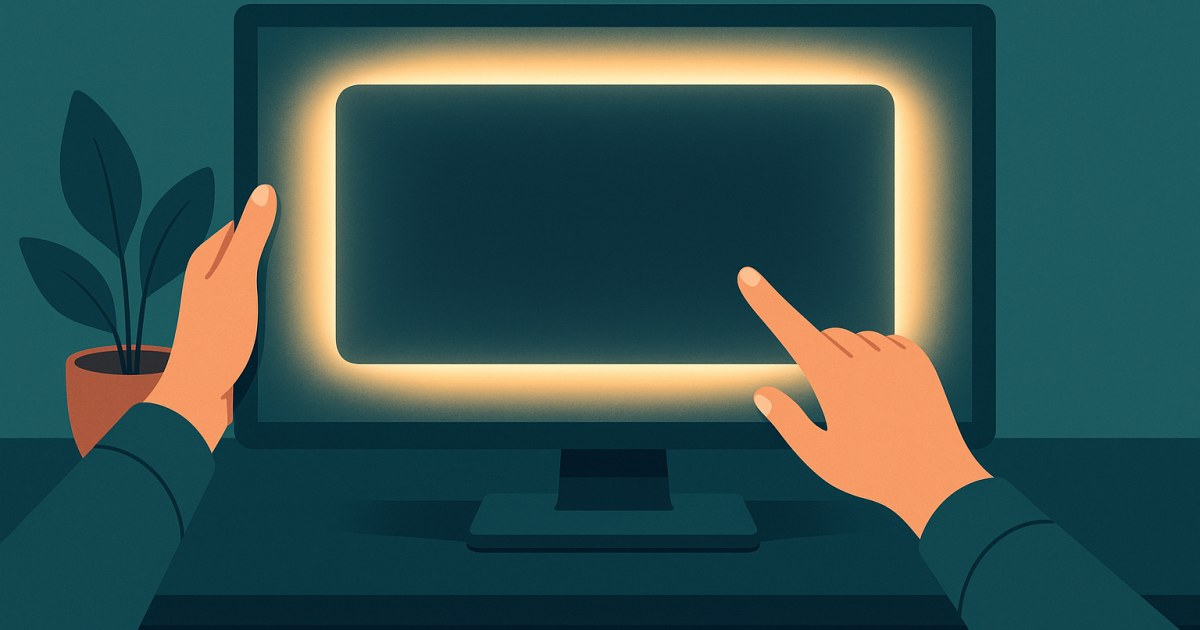
How to Use Your Screen as a Soft Light

A laptop or monitor can provide gentle fill light for video calls, a nearby reading task, or a quick look in a dim room. Learn how to position it, adjust brightness and color, and understand its limits.

Monitor Tests

How to Check a Monitor for Dead or Stuck Pixels

Use solid colors in your browser to look for dark, bright, or colored pixel defects on a monitor, laptop, or phone. Learn how to inspect the screen and understand what you find.

What is a white screen?

A white screen is a plain, bright field that fills your browser window or display. It gives you an even surface to look at, rather than a webpage full of text and images. People use a full screen white display for practical tasks such as spotting dust, adding gentle light to a video call, tracing a picture, or making a simple background.

White Screen is a collection of free browser-based screen tools. Start with the White Screen for a clean white field, or pick another solid color, open a monitor test, make a background image, or use a timer. The tools are intended for everyday visual tasks and quick checks—not as substitutes for professional display calibration or specialized measurement equipment.

A plain white field can also make small marks and smudges easier to see while cleaning, or give a camera-facing scene a brighter appearance. If pure white feels too strong, the site includes softer tones, a custom color option, and screen-light tools with warmth choices. You can use the page as it is or enter fullscreen when you want the color to cover more of the display.

Popular uses for a white screen

Cleaning a display

A white screen for cleaning creates a bright, simple surface that can help you notice fingerprints, dust and smudges. Open the White Screen, use its cleaning mode, and look across the display for marks. Cleaning mode ignores touches, which can help avoid accidental taps while you wipe the screen. Press and hold for two seconds to exit cleaning mode. Follow the device maker’s cleaning guidance and use an appropriate cloth; the webpage itself does not clean the panel.

Video call and photo lighting

A white light for video calls can provide a simple on-screen glow when you want a brighter-looking face or subject. Position the display in front of you or nearby and adjust the White Screen’s brightness and warmth controls to suit the scene. The white field can also work as a plain photo or video backdrop, while other color screens offer a ready-made colored surface. Screen light is only a convenient light source from your display, so its effect depends on your setup and surroundings.

Reading or tracing light

A bright, uncluttered field can serve as a basic light surface for reading or tracing translucent material. For a more dedicated option, Fullscreen Reading Light offers warm, neutral and cool choices with adjustable rendered intensity. You can also use the Screen Flashlight for a steady screen glow, with Warm, Neutral, or Cool / white choices. These tools make the display glow; they are not a replacement for a purpose-built light when a task needs one.

Checking a new monitor

A solid white field gives you one straightforward view of a new or used display. It can help you notice obvious color differences or unevenness across the screen, while other patterns are better suited to checking particular characteristics. Try the Monitor Test or Dead Pixel Test for a wider visual inspection. These browser-based checks help you look for visible concerns; they do not certify a display or establish a technical measurement.

How to use White Screen

The main White Screen page includes controls for color, fullscreen viewing, screen light and image downloads. Here is a simple way to get started:

  1. Pick a color. Open White Screen for white, select a color from Quick colors, or choose a custom color. The custom picker lets you select visually or enter a HEX, RGB, or HSL value. Reset returns the color to its default value, and Copy HEX copies the displayed HEX value.
  2. Go fullscreen. Select Fullscreen to expand the color across the display. When you want to return to the page controls, use Exit fullscreen. Fullscreen is useful for an uninterrupted color field for cleaning, lighting, tracing, or visual inspection.
  3. Adjust the on-page light controls. Use Display brightness and Warmth to change how the screen looks for your task. The page notes that brightness and warmth change the appearance of the screen only: the HEX value and downloaded image remain exact. These are White Screen controls, distinct from controls on your monitor or device.
  4. Set a sleep timer if useful. Choose Off, 5 min, 15 min, 30 min, or 60 min under Sleep timer. This is handy when using the screen as light and you want a selected duration rather than leaving the page active indefinitely.
  5. Use Cleaning mode when wiping the display. Turn it on before cleaning so touches are ignored. The page explains how to leave the mode: press and hold for two seconds. Avoid pressing hard on the display while cleaning.
  6. Download an image if you need a file. Choose PNG, JPEG, or WEBP, then select a listed resolution or enter custom width and height before using Download image. The tool also lets you copy the color value manually. Image generation happens in your browser; very large files, including 8K, need substantial memory and may fail on some devices.

For a quick color change, use the visible Quick colors: white, black, red, green, blue, yellow, pink, purple, orange, gray, cyan, magenta, brown, beige and mint. A separate Custom Color Screen is available when you want a chosen shade displayed as a solid field. Solid color pages can be useful for backgrounds, light, cleaning, or a quick look at how a color appears on your display.

White screen and monitor tests

White Screen includes a dedicated set of visual display checks. The Dead Pixel Test and Stuck Pixel Test show solid colors to help you look for dark, bright or unexpectedly colored subpixels. A plain white or other solid color can make a useful first view, but changing the pattern helps reveal different visible issues.

For broader inspection, Monitor Test Patterns displays grids, lines, text, gradients and level patches, while the Monitor Test provides patterns for checking a new or used screen and comparing settings. Screen Uniformity Test uses white, black and gray patterns to help you look for uneven brightness or tint. Backlight Bleed Test gives you dark fields for visually checking glow around the edges.

Other tests focus on specific visual features. Gradient Test and Color Banding Test show ramps that can help reveal visible steps or uneven transitions. Black Level Test and White Level Test use near-black and near-white patches to help you assess visible shadow or highlight detail. Sharpness Test and Text Clarity Test provide fine lines and text patterns for a visual look at clarity.

There are also tools for brightness, contrast, gamma, motion, OLED displays, HDR and color depth. Examples include the Brightness Test, Contrast Test, Ghosting Test, OLED Gray Test, HDR Test and Color Depth Test. Each is a browser-based visual aid. Results depend on the screen and viewing conditions, so use them to notice and compare what you see, not as calibrated measurements or a guarantee of panel condition.

More than a white screen: other tools

Color screens

Choose a solid color when white is not the right fit. The Black Screen can dim the display or provide a dark field, while red, green and blue screens can serve as plain backdrops or help you inspect color channels by eye. Yellow, pink, purple, orange, gray, cyan, magenta, brown, beige and mint are available too. The Green Screen can provide a simple green backdrop, and the Gray Screen offers a neutral-looking field.

Screensavers

For an idle display, choose an animation or clock. The DVD Logo Screensaver shows a bouncing badge, and the Matrix Rain Screensaver offers adjustable falling characters. The Flip Clock Screensaver and Digital Clock Screensaver keep time visible, while TV static and radar provide decorative motion.

Clearly labeled simulators

Screen simulators create fictional scenes for a video, presentation, screenshot or playful demonstration. Options include Windows, macOS, Ubuntu and Android update-style screens, a fake video call, a no-signal display and a hacker-style terminal. They are visual props, not real system updates, calls, network changes or computer access.

Background generators

Make a downloadable image with the Solid Color Background Generator, Gradient Background Generator or Pattern Background Generator. The Wallpaper Maker adds options such as text and decorative circles, while noise and checkerboard generators create other customizable background styles.

Timers and focus

The Countdown Timer is for a chosen period, the Stopwatch tracks elapsed time and laps, and the Pomodoro Timer helps structure work into focus and break periods. Focus Screen gives you a minimal fullscreen view with an optional countdown or clock for keeping one task in sight.

Screen lights

Reading Light and Screen Flashlight turn the display into a steady glow with choices for its tone and rendered intensity. They are useful when a nearby lamp is inconvenient, while White Screen itself gives you a plain white field with its own brightness and warmth controls.

Privacy and how the tools work

White Screen tools run in your browser. You do not need an account, and there is nothing to install to use the screen pages, tests, generators or timers. Open a tool, use its available controls, and the browser displays the result.

For the main White Screen image download, the site notes that images stay in your browser. The browser-based tools are designed to make a task available directly on the page, whether you need a full screen white field, a quick visual check, a background image, or a timer. No special software setup is required.

As with any screen tool, what you see can vary with your display and viewing environment. A white screen can make a helpful cleaning surface or light source, and a dead pixel test can help you spot something worth examining, but neither the screen nor the tests can repair hardware or replace a professional assessment. Choose the tool that matches your task, adjust its on-page options, and use the result as a convenient visual aid.

Frequently asked questions

What is a white screen used for?

A white screen creates a plain, bright field that can help you spot smudges, provide simple light for a video call, support tracing, or make a clean background.

How do I make my screen full screen white?

Open the White Screen tool and select Fullscreen. Use Exit fullscreen when you want to return to the page controls.

Can I use a white screen for cleaning?

Yes. A bright white field can make marks easier to notice, and White Screen has a Cleaning mode that ignores touches. Press and hold for two seconds to exit that mode.

Can a white screen work as a video call light?

It can provide a simple glow from your display. Adjust the White Screen's brightness and warmth controls to change how the on-screen light looks.

How do I change the white screen brightness or warmth?

Use the Display brightness and Warmth controls on the White Screen page. These controls change the screen's appearance; the HEX value and downloaded image stay exact.

Can I download a white screen image?

Yes. Choose PNG, JPEG, or WEBP and select a listed resolution or enter custom dimensions, then choose Download image. Image generation stays in your browser.

How can I check for dead pixels?

Open the Dead Pixel Test and view its solid-color patterns to look for dark, bright, or unusual subpixels. It is a visual check, not a certified hardware diagnosis.

What is the difference between a dead pixel test and a stuck pixel test?

The Dead Pixel Test helps you look for dark, bright, or unusual subpixels, while the Stuck Pixel Test uses solid color fields to look for subpixels that stay an unexpected color.

Can an online monitor test tell me if my display is defective?

Browser-based tests can help you notice visible irregularities and compare patterns, but they do not certify a display or provide a complete hardware diagnosis.

Can I use a different color instead of white?

Yes. White Screen includes quick colors, and separate color pages offer solid fields such as black, red, green, blue, gray and others. Custom Color Screen lets you choose a shade or enter HEX, RGB, or HSL.

Does White Screen require an app or account?

No. The tools run in your browser, with no account required and nothing to install.

Are the fake update and video call screens real?

No. They are clearly labeled visual simulations for props, presentations, videos or demonstrations. They do not update a device or start a real call.